In the world of digital advertising, a Google Ads account is very useful. When things change in a business, like a new agency or a shift in the team, it’s important to transfer the ownership of the Google Ads account. This transfer helps keep all the campaigns running smoothly. It also protects historical data and makes sure that ad spending continues without any breaks.
Understanding Google Ads Account Ownership
A Google Ads account is how a business runs ads on Google. The account owner has full control. They can manage campaigns, set budgets, and check billing details. Usually, businesses handle their Google Ads accounts themselves or work with a Google Ads manager, like an agency.
A Google Ads manager account is known as an MCC, or My Client Center. It helps manage several Google Ads accounts from one place. This is especially helpful for agencies that have many clients. An MCC lets you set different access levels and permissions. This way, people can have different levels of control over the Google Ads accounts they manage.
The Importance of Account Ownership
Transferring a Google Ads account correctly is very important for several reasons. First, it helps keep the client’s advertising going strong. The new owner can easily take over the current campaigns and make changes without stopping the existing work.
Keeping historical data is also key. This data includes how campaigns did, keyword plans, and audience details. This information is very useful for improving future ads. It helps the new owner learn from what worked before. Finally, moving ownership helps with security. It makes sure that only the right people access and manage the client’s account, which reduces risks.
Types of Access and Permissions in Google Ads
Google Ads has a system for access and permissions that helps keep accounts safe and easy to manage. Knowing about these levels is important when transferring ownership. Here are the common roles and what they can do:
- Administrative Access: This role gives total control of the Google Ads account. Users can manage campaigns, change billing info, and add or remove other users.
- Standard Access: Users can view account information, manage campaigns, and create or change ads. However, they can’t modify sensitive details like billing info.
- Read-Only Access: Users with this permission can only look at data and performance numbers. They cannot make any changes.
It is very important to check and update these permissions when transferring ownership to fit the new management style.
Preparing for Ownership Transfer
Before you start the transfer, there are some important steps to follow. First, collect the needed information. This includes the Google Ads account ID, the email address linked to the current owner, and any login details. If a previous agency managed the account, talk to them. It’s important to get the access you need.
Next, it’s smart to talk with everyone involved about the transfer process. Write it down to avoid confusion later on. When everyone understands what’s happening from the beginning, it helps prevent problems later.
Verifying Current Ownership and Access Levels
Start by figuring out who currently owns the Google Ads account. You can do this by logging into the account and going to “Account Settings.” Check the Google Ads Customer ID and see which Google account has administrative access. This step is very important to make sure you are talking to the right person for the transfer process.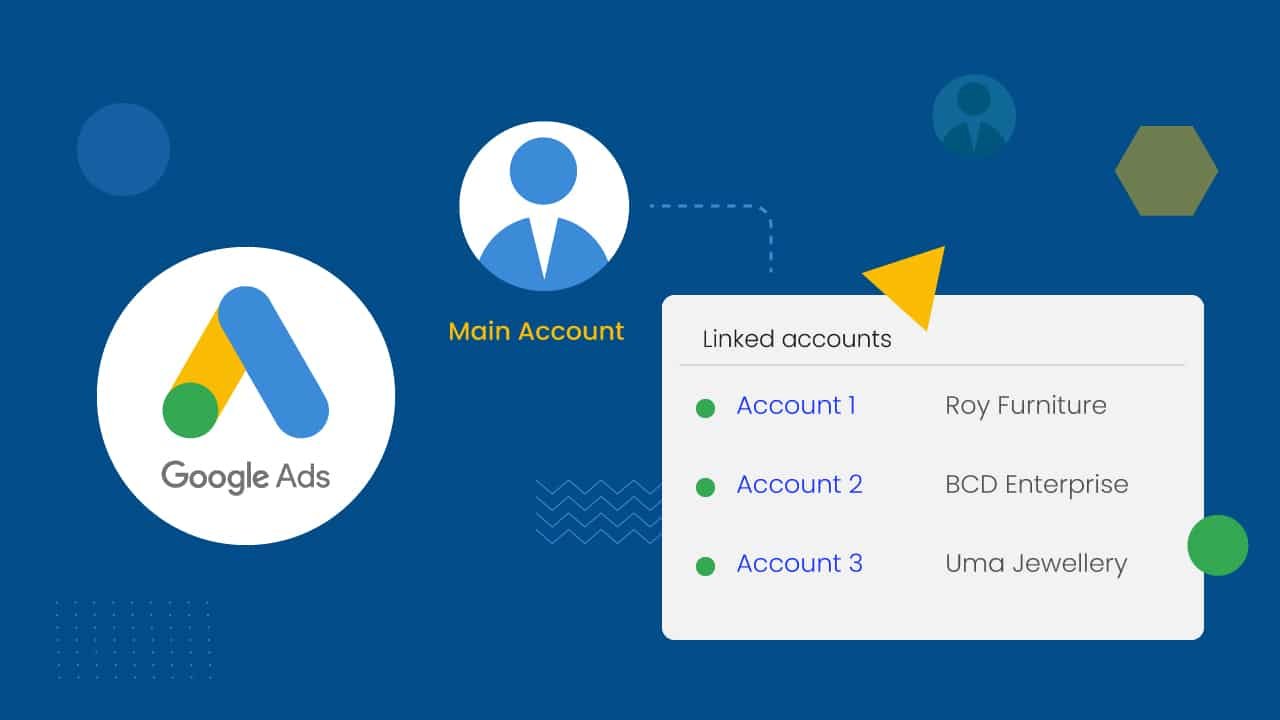
After you find the current owner, check what level of access they have. Make sure they can start and finish the ownership transfer. If they don’t have administrative access, they must reach out to someone with higher privileges to move forward.
Communicating with the Current Owner
- Contact the current owner and let them know about the transfer. You can send them an email explaining why you want to change the ownership.
- It helps to include important details, like the new owner’s email address and a suggested timeline for the transfer.
- Getting in touch with Google Ads support early can help a lot.
- Share the account information and your transfer request with them. This makes the process easier and lets them guide you on what requirements or documents you need.
The Process of Changing Ownership
Google has made the process of transferring ownership much simpler. It is easy to follow. The steps might be a bit different based on your situation, but the main ideas stay the same. You can start the transfer using the Google Ads UI and give access to the new owner.
During this process, Google support is ready to help you. If you have questions about a step or run into any problems, their team can guide you. This will help make your transition smooth.
Initiating the Transfer Request
With everything ready, the next step is to start the ownership transfer request. If you are using a Google Ads Manager Account (MCC), log in to the MCC. Find the option to link an existing account. You will need the customer ID of the Google Ads account you want to transfer.
You can also use the Google Ads API to send a transfer request. This method works well for managing transfers automatically, especially for bigger businesses or agencies. No matter which way you pick, make sure the current account owner approves the request. This will complete the first step of the transfer process.
Accepting Ownership Transfer
Once the transfer request is sent, the current owner will receive a notification prompting them to approve the transfer. Upon approval, the new owner will need to accept the ownership of the Google Ads account. This acceptance process may involve reviewing the account’s settings, linking the account to a Google Merchant Center if applicable, and setting up billing information.
To illustrate, here’s a table summarizing the actions of each party:
Action | Current Owner | New Owner |
Initiates transfer request | ✓ | |
Approves transfer request | ✓ | |
Accepts ownership | ✓ | |
Updates billing information | ✓ |
Post-Transfer Considerations
After the ownership transfer is complete, there are a few important things to think about. First, update the billing info. This will help keep theGoogle Ads campaign running smoothly. You might need to link a new payment profile or move the current payments profile to the new owner.
Next, take some time to check the account’s settings, campaigns, and user access. Change anything that needs it to fit the new management team’s needs. This will help keep the campaign going well with the new ownership.
Updating Billing Information
To keep your advertising going without any breaks, make sure to quickly update your billing information for your Google Ads account. First, log into the account. Then, go to the “Billing” section. Here, you can add a new payment method, change your current details, or move your payment profile to another Google Ads customer.
If you have any problems while updating your billing info, reach out to Google Ads support. Their team is ready to help you fix any issues and will guide you through the steps you need to take.
Reviewing User Access and Permissions
Once billing is set up, check the current user access and permissions in the Google Ads manager account. Access levels decide what each user can do. It is important to delete any users who don’t need access and update permissions for the new management roles and tasks.
For example, you might need to give administrative access to important staff in the new organization. At the same time, you may need to reduce the access for people who no longer need it. Keeping a clean and secure access structure helps reduce potential security risks.
Final Checklist for Google Ads Account Ownership Transfer
In conclusion, changing who owns a Google Ads account is important. You need to know about account ownership, what access levels mean, and permissions. To make the switch easy, first, confirm who the current owner is. Then, request the transfer and update the billing details afterward. It’s also important to talk clearly with the current owner and check who has access. Following these steps helps ensure everything goes smoothly and keeps your advertising campaigns on track.
Frequently Asked Questions
How long does the ownership transfer process take?
Transferring ownership of Google Ads is usually simple. It can take a few hours or even a few days. How long it takes depends on how quickly both sides respond and any help needed from Google Support.
Can ownership be transferred to someone without a Google Ads account?
Yes, you can give ownership to someone who doesn’t have a Google Ads account. When they accept the transfer, they will need to set up a new Google Ads account with their email address. This new account will be linked to the MCC by default.